

The short answer: Shopify page speed optimization starts by identifying which storefront template is slow, under what conditions, and whether the issue appears in real-user field data, a controlled lab test, or both. Check the product page, collection, cart, and landing pages separately. Then investigate large images, theme code, app embeds, third-party scripts, fonts, and layout shifts one at a time. Google’s current Core Web Vitals guidance uses the 75th percentile of page visits, with “good” thresholds of LCP at or below 2.5 seconds, INP at or below 200 milliseconds, and CLS at or below 0.1. A score is a diagnostic signal, not a guaranteed sales result; retest the same page and conditions after each change.
Shopify page speed optimization starts with diagnosis
A shopper taps a product card and waits. The main image appears late, a review widget blocks interaction, the variant selector responds after a pause, or a recommendation panel shifts the page. The overall experience feels slow, but those symptoms point to different causes. One generic speed score cannot tell the team whether the fix belongs in image delivery, JavaScript, server response, app code, or layout design.
Shopify’s storefront performance can vary by theme, content, apps, markets, devices, networks, and recent changes. Start with a reproducible page and test condition. Record the URL, template, date, device and network settings, tool, and result. Compare similar pages and repeat the test before deciding what to change.
Know what the Core Web Vitals measure
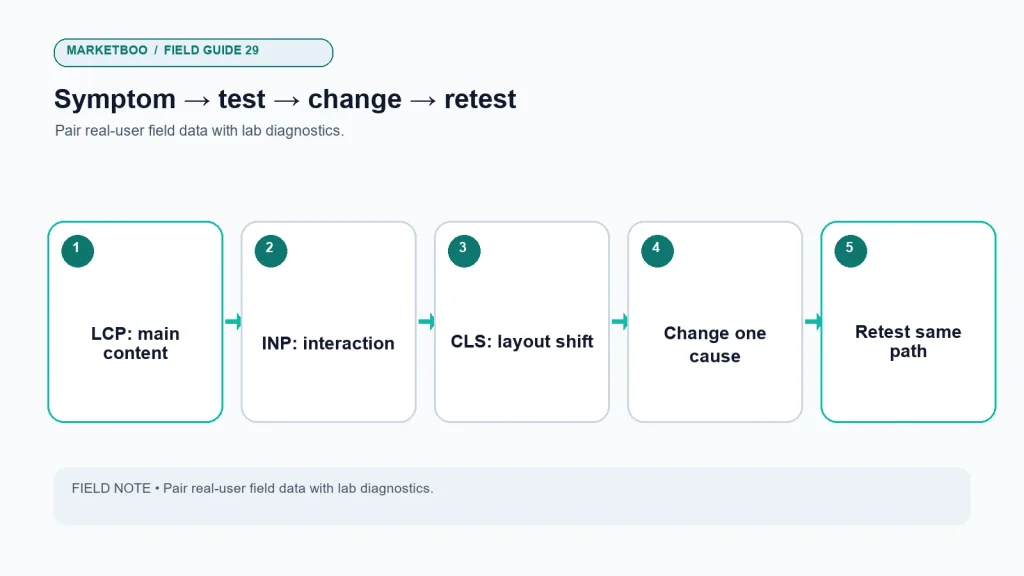
Largest Contentful Paint (LCP) measures when the largest visible content element is rendered. On a storefront, that could be a hero image, product image, or large text block, depending on the page. Interaction to Next Paint (INP) reflects responsiveness across interactions, such as opening a menu, changing a variant, or using a filter. Cumulative Layout Shift (CLS) measures unexpected movement of visible page elements.
Google’s web.dev Core Web Vitals guidance defines these metrics and their field thresholds. The current guidance classifies a page experience using the 75th percentile of real-world visits: LCP ≤ 2.5 seconds, INP ≤ 200 milliseconds, and CLS ≤ 0.1 are the “good” thresholds. The thresholds are useful diagnostic targets, but passing them does not guarantee a ranking or conversion increase. Search and shopping outcomes depend on many factors.
| Metric | What a shopper may notice | Common investigation area |
|---|---|---|
| LCP | Main product image or heading appears late | Image size/priority, render-blocking CSS/JS, server response |
| INP | Variant, menu, filter, or cart responds slowly | Main-thread work, event handlers, scripts, app widgets |
| CLS | Buttons or text move as the page loads | Missing image dimensions, late widgets, injected banners, font swap |
Field data and lab data answer different questions
Field data comes from real visits collected under defined privacy and eligibility conditions. It reflects a range of devices, networks, browser states, and user behavior. Google’s Chrome User Experience Report (CrUX) provides aggregated real-user experience data for eligible pages and origins. When enough data is available, it can help answer whether actual visitors tend to experience a page as fast or slow.
Lab data comes from a controlled test tool such as Lighthouse or PageSpeed Insights lab analysis. It is useful for reproducing a page load, inspecting a performance trace, and identifying likely bottlenecks. It does not represent every customer. A developer’s local test on a fast desktop cannot substitute for field data from mobile shoppers.
Google Search Console’s Core Web Vitals report may group URLs by similar status when field data is available. A group can reveal a template-level problem, but the team should inspect representative pages and underlying data before making broad changes. A single URL may not have enough field data to report independently.
| Data type | Useful for | Limitation |
|---|---|---|
| CrUX/field data | Real-user trends and 75th-percentile experience | Aggregated; may be unavailable for low-traffic pages; not a debugging trace |
| Lighthouse lab data | Reproducible diagnostics and trace inspection | Synthetic conditions differ from customer devices and networks |
| Shopify/admin performance tools | Store-level context and Shopify-specific guidance | May summarize pages; verify what the score includes and its period |
| Browser dev tools | Request timing, script activity, layout shifts, and interaction traces | Requires a known test path and interpretation |
Use field data to understand the experience at scale and lab data to investigate why. If field data is absent, you can still improve a clear technical issue, but state that user-level confirmation is unavailable.
Diagnose by template before editing code
Pick the highest-value page types first: homepage, collection, product detail, cart, campaign landing page, and any custom page that receives substantial paid or organic traffic. Select representative examples: a product with a large image gallery, one with variants, one using subscriptions or bundles if applicable, and one with several app widgets. Record a baseline and the test conditions.
Look for patterns across pages. If every product template has a late main image, the theme or image priority may be involved. If only pages with a review widget have poor responsiveness, inspect the app and its scripts. If a campaign page shifts when a promotional banner loads, check layout reservation and the banner implementation. Pattern recognition helps avoid treating each URL as an unrelated bug.
Do not remove an app because one test looks poor. Establish whether the app contributes to the metric, whether the functionality is important, and whether there is a lighter configuration or alternative. A review widget may support customer decisions; removing it can hurt the business even if a score improves. Ask the product owner to weigh user value against performance cost.
Sample the journey, not only the landing screen
Performance depends on what the shopper does. A product page may load quickly but become unresponsive when a variant selector, size guide, or recommendation panel opens. A collection can render the first row fast but stall when filters or pagination are used. Add a short interaction script to the investigation: load the page, scroll to the product details, change a variant, open a menu or filter, add an item to cart, and continue to the next step.
Record the moment the interaction starts, what the shopper expects, and how the interface responds. Use browser developer tools or an approved lab trace to see whether long tasks, repeated event handlers, network requests, or layout shifts coincide with the delay. If the test requires an account or cart state, create a safe repeatable setup. Avoid using a real customer profile for diagnosis.
This task-based view is particularly useful for INP. A page can have a good initial render and still feel sluggish when JavaScript competes with the interaction. Review the main thread, app scripts, and long tasks that occur near the input. Then test the actual control after a change. Do not infer that a score improvement on the initial page means every shopper interaction is faster.
| Interaction | Expected response | Evidence to capture |
|---|---|---|
| Open main menu | Navigation becomes available without layout break | Input-to-paint trace and keyboard path |
| Apply collection filter | Results update and selected filter is clear | Request/response timing and visual state |
| Select product variant | Price, image, availability, and cart option update | Interaction trace and product state |
| Open size or details guide | Information appears and can be dismissed | Script cost, focus behavior, layout movement |
| Add to cart | Confirmation appears and cart state changes correctly | Event, UI response, and safe cart record |
Work through the storefront bottlenecks
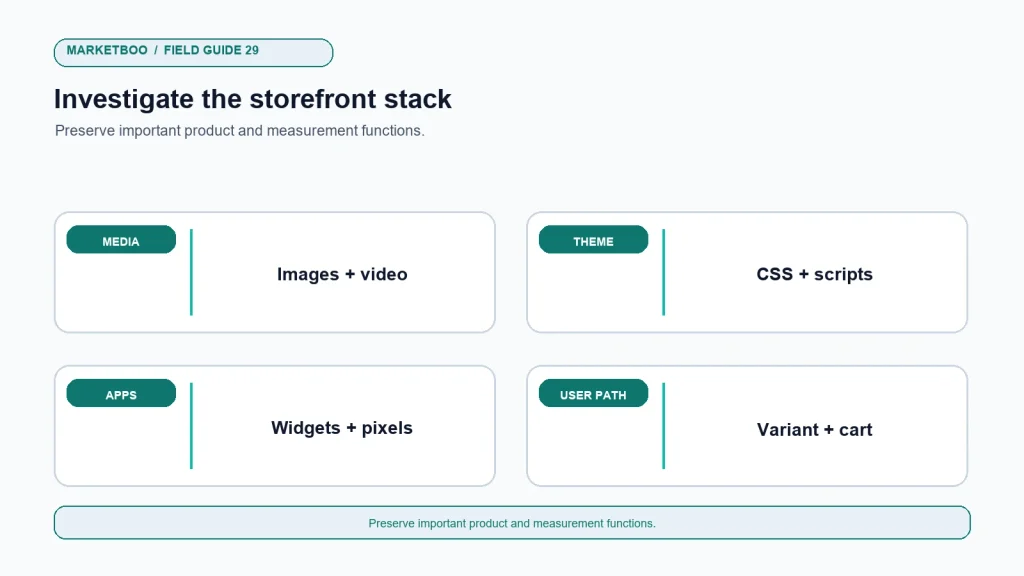
Images and media
Product images are central to ecommerce. Large source files, redundant images, or an oversized hero can slow the first meaningful view. Use appropriately sized responsive images, modern formats where the storefront supports them, descriptive filenames and alt text, and dimensions that reduce layout shift. Compress copies without damaging product detail. Do not lazy-load the image that should become the LCP element without testing; defer offscreen imagery while ensuring the main visual can load promptly.
For video, consider whether it must autoplay, how it affects mobile data use, and whether a poster image is needed. Keep product evidence available when media fails. Use captions or other accessibility supports where appropriate. Avoid adding several high-resolution videos above the fold.
Theme code and rendering
Review theme updates, custom Liquid, CSS, JavaScript, app blocks, and duplicate snippets. Remove unused code only after the owner verifies that no template or marketing workflow depends on it. Avoid bundling scripts needed by one feature onto every page. Prefer stable layout and semantic components that can be maintained as the theme changes.
An apparently small theme setting can affect many pages. Test on a preview theme, compare before and after, and review the rendered source and network requests. Keep a change log. If code is custom, have a developer document what it does before deleting or rewriting it.
Apps and third-party scripts
Review apps, pixels, chat, reviews, subscriptions, personalization, analytics, consent, and marketing scripts. Identify which are essential, who owns them, how often they run, and what data they collect. Some scripts load third-party code or request resources from remote services. A slow vendor endpoint may affect the storefront differently from your theme code.
Use a test environment where possible. Disable one app embed or script at a time, then repeat the same test. Check both performance and business functionality. Removing a pixel may improve a lab score but break measurement; removing a chat tool may reduce an interaction path. Include analytics and privacy owners in decisions.
Fonts and layout stability
Custom fonts can delay text rendering or cause changes when the final font replaces a fallback. Limit font families and weights to those used, and test font-loading behavior. Reserve space for images, badges, recommendation widgets, and announcement bars. Avoid late injections that push buttons or product descriptions down after the shopper begins interacting.
Symptom-to-action diagnostic table
| Symptom | First check | Possible action | Retest evidence |
|---|---|---|---|
| Product image appears late | Request size, format, priority, and source dimensions | Resize/compress, serve responsive variants, review priority | Same template, device and network lab run; field trend later |
| Variant control responds slowly | Main-thread activity and app listeners | Reduce or defer nonessential script work; simplify handler | Interaction trace and repeated INP observations |
| Layout jumps after load | Image/widget dimensions and injected content | Reserve space, stabilize component dimensions, adjust font loading | CLS trace and visual repeat test |
| Only one template is slow | Apps, blocks, large content, custom code on that template | Isolate the pattern and change the responsible component | Compare several pages of that template |
| Checkout handoff is delayed | Cart scripts, discount logic, app extension | Test a complete purchase path and involve checkout owner | Safe test order plus performance trace |
| Lab is poor, field looks good | Test conditions and page sample | Use lab trace to prioritize, but assess customer impact before broad work | Repeat lab under documented conditions |
| Field is poor, lab looks good | Device mix, network, region, real widget behavior | Investigate real-user segments and third-party dependencies | Compare available field groups and field trend |
Change one thing, then retest the same experience
A common optimization mistake is to change the theme, uninstall apps, compress media, and rewrite scripts in one release. If performance improves, the team cannot identify the change that mattered. If functionality breaks, the rollback becomes complicated. Group changes only when they are tightly coupled and tested as a single release with clear acceptance criteria.
Keep a test record: page URL, template, environment, device, network, browser, tool version, date, screenshots or trace, baseline metrics, code or setting change, functionality check, and post-change result. Include at least one representative mobile test. Compare like with like; PageSpeed scores fluctuate with test conditions and should not be treated as a precise business forecast.
For field metrics, remember that changes take time to appear and require enough eligible visits. A fast lab result does not instantly replace historical field data. Keep the release date next to the monitoring view and wait for the relevant reporting window before concluding that real-user experience changed.
Treat performance as a release practice
The fastest storefront can become slow again when a new app, campaign banner, product video, review widget, or theme customization is added. Add a small performance check to the release process. When a team proposes a new script or media asset, ask which templates load it, what customer task it supports, and how the team will test its effect. This turns speed from a one-time cleanup into a shared operating responsibility.
Use a performance budget as a conversation tool rather than a universal score. The team might agree that a new template must preserve the current field status for its key pages, or that a script should not load on pages that do not use its feature. Define the test condition, owner, and exception process. If a business-critical feature adds cost, document the trade-off and look for a lighter implementation instead of hiding the change.
Review third-party services periodically. Vendor endpoints, tags, and app code can change without a theme release. Keep a list of external resources, page coverage, business owner, and last review. If a service is no longer used, remove it through the approved process and check that analytics, consent, and customer functionality still work.
A performance release note
| Field | Record |
|---|---|
| Change | New app, image set, script, font, or theme component |
| Templates | Pages where the change loads |
| Customer purpose | Task the change supports |
| Baseline | Lab and available field evidence before release |
| Test | Device, network, URL, browser, date, and tool |
| Functional check | Product, cart, checkout, analytics, accessibility |
| Result and owner | Observed change, decision, and follow-up date |
The note can be short. Its purpose is to keep the next investigation from starting without context.
Prioritize the work
Start with issues that affect important customer paths and have a reproducible cause. A product image delay on a high-traffic template may deserve attention before a small shift on a rarely visited blog page. An interaction problem in the cart may matter more to the business than a minor score change on the homepage. Consider accessibility, functionality, and maintainability alongside speed.
Use a simple priority record: affected pages, shopper task, evidence, likely cause, confidence, effort, dependency, business risk, and verification method. Avoid a single formula that masks judgment. A developer may identify a risky code change; the product owner may determine that an app is essential; the ecommerce manager may provide context about campaigns or stock.
Close a finding only when the intended change and test are documented. If the team accepts a trade-off, retain the reason and a review date. That note allows future owners to understand why an app or script remains even if it adds performance work. It also prevents the same issue from returning as a new ticket after staff or agency responsibilities change.
Keep the backlog small enough to act on. A long list of theoretical optimizations can bury the high-impact customer path. Group similar issues by template, mark findings that depend on more evidence, and assign a next review date. If a proposed improvement cannot be connected to a shopper task or reproducible metric, investigate further before scheduling development.
Account for region, device, and campaign traffic
Store performance can differ by market, device, network, browser, and customer route. A desktop test in one region may not reveal a mobile experience in a different market. If the store serves international shoppers, sample important regional storefronts and localized product pages. Confirm currency, images, fonts, scripts, and consent behavior on the actual route customers use.
Campaign pages can also behave differently from normal catalog pages. A promotion may add a banner, urgency widget, or landing-page app. A product launch can bring more mobile traffic than usual. Record campaigns and releases alongside the test so that the team can investigate changes in context. If a particular landing page is critical to paid media, test it as its own template rather than assuming the general product page represents it.
Do not overreact to an isolated performance test. Lab results can vary with server conditions, caching, browser version, and test environment. Repeat the measurement and inspect the trace. For field data, consider geographic and device segments only when there is enough coverage; tiny samples can be misleading. The objective is to locate a customer-relevant bottleneck, not to win a single test run.
Keep a prioritized improvement backlog
Store each finding with the page group, metric, trace or field evidence, probable cause, business purpose of the affected feature, proposed change, test, and owner. Sort the backlog into immediate customer-path fixes, high-confidence improvements, experiments, and monitoring. Revisit estimates after the developer inspects the implementation; a theme-level change may have a broad effect while a per-page manual edit may not scale.
When a change is deferred, state why and when it will be reviewed. For example, the team may defer replacing a review widget until an alternative preserves accessibility and product trust. That is a deliberate trade-off. An undocumented decision can lead a future team to remove the feature without understanding its role.
How to optimize Shopify page speed
- Choose representative pages. Include product, collection, cart, homepage, and campaign templates that matter to shoppers.
- Record field data. Check CrUX or the available Search Console Core Web Vitals grouping; note coverage and date range.
- Run a repeatable lab test. Record URL, device, network, tool, browser, and date; save the report or trace.
- Identify the metric and bottleneck. Separate LCP, INP, and CLS symptoms instead of making a general “slow” claim.
- Inspect theme and page assets. Check image sizes, responsive variants, fonts, CSS, custom code, and template differences.
- Inventory apps and scripts. Identify owner, purpose, page coverage, data role, and performance impact before removal.
- Make one bounded change. Use a preview or test environment and name the expected benefit and functionality risk.
- Retest the same task. Compare the same URL and conditions; confirm that product, cart, tracking, and accessibility still work.
- Monitor field experience. Review the relevant page groups after enough real-user data has accumulated.
- Document and maintain. Record the result, owner, app/theme changes, and a process for future speed regressions.
When to involve a Shopify developer or SEO specialist
Outside help can be useful when the issue spans theme code, several apps, custom checkout behavior, analytics, or search-critical templates. Ask for a diagnosis before a broad rewrite. Request the affected template, evidence, proposed change, functionality risks, and post-change test plan. If the work involves pixels or customer events, include the measurement and privacy owners.
Marketboo provides website development and design and SEO/GEO services. If you need a storefront review, contact Marketboo with sample URLs, theme details, apps, and the field or lab evidence you have. Confirm the current scope and who will implement and retest fixes.
FAQ
What is a good Shopify page speed score?
A score depends on the tool and test conditions. For Core Web Vitals, Google’s current “good” field thresholds at the 75th percentile are LCP at or below 2.5 seconds, INP at or below 200 milliseconds, and CLS at or below 0.1. A single lab score does not represent every customer or guarantee a business outcome.
How do I check Shopify Core Web Vitals?
Use available field data such as CrUX and Search Console’s Core Web Vitals report where the site has eligible data, then use PageSpeed Insights or Lighthouse for diagnostic lab testing. Record which page or group is measured and distinguish real-user data from synthetic results.
Do Shopify apps slow down a store?
An app can add code or requests that affect some pages, but impact depends on the app, configuration, theme, and where it loads. Test one app or embed at a time, check the actual storefront, and confirm business, analytics, and privacy needs before removing it.
Should I lazy-load product images on Shopify?
Lazy-loading can defer offscreen images, but the main image visible at the start of a page may need different treatment. Test the actual product template and device conditions. Preserve responsive sizing, image dimensions, and a fast path for the primary visual.
Why is my Shopify store fast in a lab but slow for customers?
Lab and field data reflect different conditions. Real shoppers use varied devices, networks, locations, browsers, and app states. A lab report helps isolate causes; field data shows an aggregated real-user experience where available. Compare the page group and reporting period before drawing a conclusion.
Can page speed improve Shopify search rankings?
Performance and Core Web Vitals are part of page experience considerations, but they do not guarantee rankings. Relevance, content, competition, and many other signals matter. Improve speed to make the storefront more usable and verify results without promising a ranking change.
How often should I audit Shopify page speed?
Check performance before and after theme, app, or major content changes, and review important templates on a schedule that fits release activity. Re-test when new scripts, widgets, or media are added. A regular owner and change log are more useful than a single annual score.
Diagnose before you optimize
Shopify page speed optimization works when the team can connect a shopper-visible symptom to a tested cause. Use field data to understand real-user patterns and lab tools to investigate. Improve images, theme code, apps, scripts, and layout stability only when the evidence points to them, and preserve the product and measurement functions customers need.
Record each change and retest the same pages under the same conditions. Monitor field data when it becomes available, and interpret changes alongside product, campaign, device, and market context. A faster storefront is a technical goal; the business should still validate whether the customer experience and purchase path remain clear.